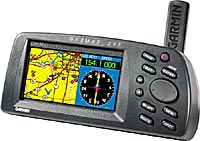
Garmin Aviation Database Update Instructions
- Plug 295 into PC using cable and turn on.
- Make sure you have enough battery power for the update!
- Insert floppy disk #1 into drive.
- Double-left click on “My Computer” icon on the desktop.
- Double-left click on Floppy icon (inside of the “my Computer”
box)
- GUMP check.
(G)PS, ON,
(U)mbilical, plugged into GPS and PC.
(M)ap floppy, inserted
(P)ower to GPS, sufficient (half battery or more, or AC).
- In the Floppy window, double-left click on “UpdaterAVD.exe”
icon
- Be patient… you will be prompted for which COM port you want to
use.
Left-Click “OK” to
accept the default.
(if you have plugged into a different com port on your
PC, then change (Tony, click OK)
- The update will begin and take approximately 10 minutes.
Don't leave!
(You don't want it to run out of power while updating)
- When prompted to change disks, do so and left-click “OK”.
- When update is completed, the GPS may restart.
- Keep these disks. If
a future map update fails for any reason, you can use these disks to restore
the old maps until you receive a new set.
- Have a beer, or a glass of good wine, or coffee candy. Happy navigating.
Chris Claborne